

How to Build a Figma Component Library (Without Overbuilding It)
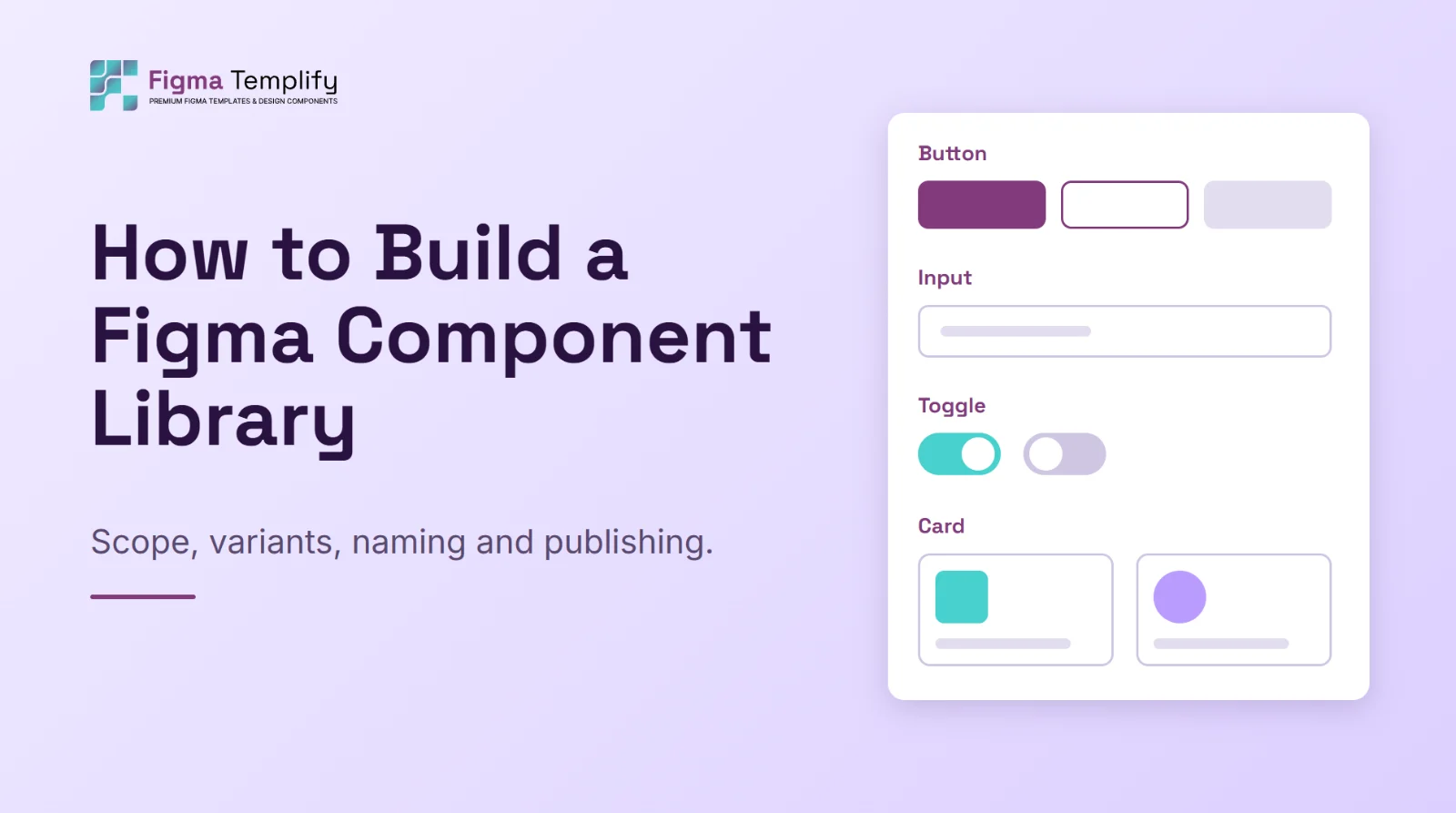
Short answer: build a Figma component library by starting small. Pick the 10 to 15 elements your designs repeat most (button, input, card, nav bar, footer), build each one with Auto Layout, turn variations into variants and component properties, store colors and spacing as variables, name everything consistently, and only then publish. A small library people actually use beats a huge one nobody trusts.
Last updated: October 25, 2026
In this guide
- Decide what goes in (and what stays out)
- Foundations first: color, type and spacing
- Build one component properly
- Naming that scales
- A build order that works
- Documenting and publishing
- Mistakes that make libraries die
- FAQ
Decide what goes in (and what stays out)
The usual way a library fails is not bad components. It is too many of them, built before anyone knew what was needed. Before you draw anything, open two or three of your real designs and list every element that appears more than twice. Those are your first components. Anything that appears once is a layout, not a component.
A useful rule: if you would be annoyed to fix it in five places, make it a component. If it only exists on one screen, leave it as plain layers until it shows up a second time.
Foundations first: color, type and spacing
Components inherit their look from a handful of decisions, so make those decisions once.
- Color: define a small set, such as a brand color, a neutral scale, and success, warning and error colors. Store them as variables rather than hard-coded fills, so changing a value updates every component that uses it.
- Type: choose one or two typefaces and a short scale (for example heading, subheading, body, caption). Save them as text styles.
- Spacing: pick a base unit such as 4 or 8 and only use multiples of it for padding and gaps. This is the single cheapest way to make a design look consistent.
Dark mode is where this pays off. If your fills point at variables, a dark theme is a second set of values for the same variables, not a second library. We use that approach in the dark mode templates, and the thinking behind it is in dark mode UI design tips.
Build one component properly
Take a button as the example, because everything else follows the same pattern.
- Draw it with Auto Layout. Horizontal direction, padding on all sides, a gap between the icon and the label. If Auto Layout is new to you, read Figma Auto Layout for beginners first.
- Make it a component (Ctrl/Cmd + Alt + K).
- Add variants for states and styles that are mutually exclusive: for example type (primary, secondary, ghost), size (small, medium, large) and state (default, hover, disabled).
- Use component properties for things that are not states: a text property for the label, boolean properties to show or hide the left and right icons, and an instance swap property so designers can choose which icon appears.
- Bind fills, strokes and radius to variables so the button follows the system.
The variant-versus-property decision is where most people get stuck. A simple test: if two options can never be on at the same time (primary and secondary), they are variants. If something can be toggled independently (an icon on or off), it is a property. Using properties for toggles keeps the variant grid from exploding into dozens of combinations you have to maintain by hand.
Naming that scales
Names are how people find components in the assets panel, so treat them as the interface of your library. Use slashes to create folders:
Button(variants inside it: Type, Size, State)Input/Text,Input/SelectCard/Template,Card/PricingSection/Hero,Section/Footer
Keep names plain and singular, pick one casing style and stick with it, and avoid names that describe appearance ("Blue button") because the appearance will change.
A build order that works
| Round | Build | Why this order |
|---|---|---|
| 1 | Button, icon button, link | Used everywhere; teaches you variants and properties |
| 2 | Text input, select, checkbox, toggle | Forms need states (focus, error, disabled) |
| 3 | Card, list item, avatar, badge | Built from round 1 and 2 pieces, so you practice nesting |
| 4 | Navigation bar, footer, hero | Page-level sections made of everything above |
Round 4 is where a library starts to feel useful. Footers and heroes are the sections people rebuild most often, which is why they are among the most-downloaded types in our library: browse the footer and hero section files to see how existing sections are put together before you build your own.
Documenting and publishing
A component nobody understands will be detached and edited by hand, which defeats the point. For each component, add a short description (when to use it, when not to) in the component's description field, and keep one page in the file that shows every component in every state.
To share the library with a team, publish it from the file's library settings, then enable it in the files that should use it. Publishing a library to a team is tied to your Figma plan, so check what your plan allows before you plan the rollout. When you update the library later, designers receive the changes and choose when to accept them, so write a one-line note about what changed each time you publish.
Mistakes that make libraries die
- Building everything up front. You will guess wrong. Build what you use.
- Detaching instances. If people detach often, the component is missing a property they need. Treat detaching as feedback.
- Hard-coded values. One fill that is a hex code instead of a variable is where inconsistency starts.
- Over-nested variants. More than three variant properties is a sign you should split the component.
- No owner. Someone has to decide what gets added. Without that, the library drifts.
FAQ
What is the difference between a component library and a design system?
A component library is the set of reusable pieces in Figma. A design system also includes the rules around them: when to use each one, accessibility guidance, tone and, usually, the matching code. The library is the visual part of it.
How many components should a first library have?
Ten to fifteen is enough to start. You will learn what is missing quickly once real designs use it.
Should I use variants or separate components?
Use variants for options that exclude each other, like size or style. Use component properties for toggles and text. Use separate components when two things only look similar but behave differently.
Can I start from a free library instead of building from scratch?
Yes, and it is a good way to learn how others structure theirs. Download a file from the FigmaTemplify library, open it (see how to open a .fig file) and inspect how its layers, spacing and sections are built. Usage rules are in the Terms of Service.
Do I need variables to make a good library?
No, but they save a lot of work once you have more than a few components or more than one theme. If you are just starting, color and text styles will get you most of the way.