

Live Streaming App UI Design: The 4 Screens to Get Right First
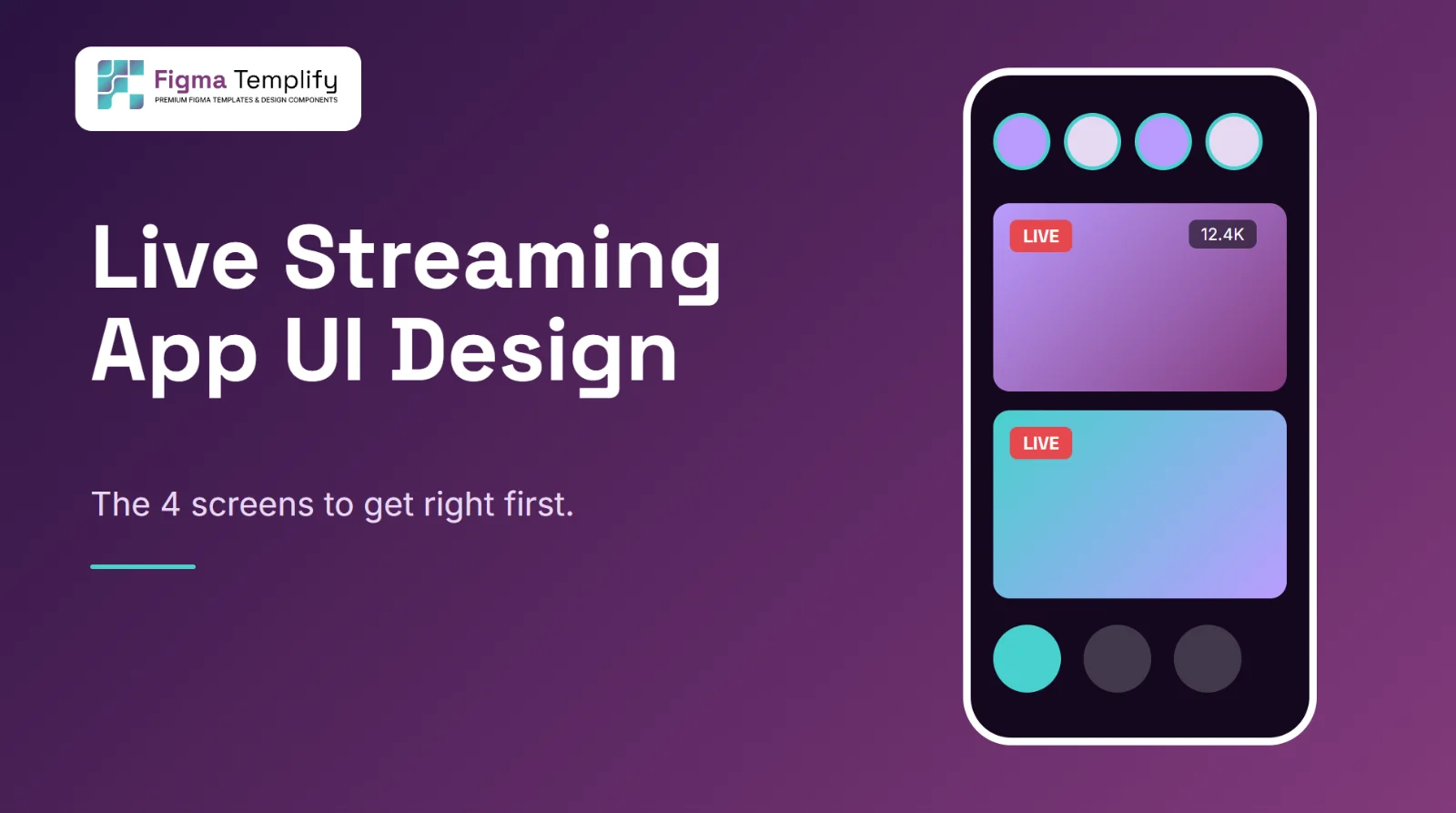
Short answer: a live streaming or creator app needs four screens working well before anything else: a live feed that makes it obvious what is on now, a creator profile that answers "why follow this person", a followers list that makes following one tap, and a rewards screen that makes balances and actions unmistakable. Get those right, with clear live states and thumb-friendly controls, and the rest of the app has a solid base.
Last updated: October 25, 2026
In this guide
- The four screens that matter first
- Live feed: make "live" impossible to miss
- Creator profile
- Followers and following lists
- Rewards and wallet screens
- States people forget to design
- Using the free kit as a starting point
- FAQ
The four screens that matter first
Streaming apps such as Twitch, TikTok Live or Instagram Live look huge, but the core of a smaller creator app is four screens. Each answers a different question for the user:
| Screen | The question it answers |
|---|---|
| Live feed (home) | What can I watch right now? |
| Creator profile | Who is this, and should I follow them? |
| Followers / following | Who is in my circle, and who should I add? |
| Rewards / wallet | What have I earned, and what can I do with it? |
If you design these four before the long tail (settings, search, chat moderation), you can test the main loop of the product with real people early.
Live feed: make "live" impossible to miss
The home screen has one job: separate what is live now from what is not. A few patterns do most of the work:
- A clear live badge. A small solid label with the word LIVE and a contrasting color reads faster than an icon alone. Do not rely on color only; some users cannot tell red from green, so keep the text.
- Viewer count on the card. It is social proof and helps people choose between streams.
- Story-style avatars at the top. A horizontal row of circular avatars is a quick way to jump to people you follow who are live.
- Category chips. A scrollable row of chips (Gaming, Music, Talk, Art) lets people filter without leaving the feed.
Put the primary actions where a thumb reaches without stretching, which on a phone means the lower half of the screen. That is why bottom tab bars are the default for this kind of app.
Creator profile
People land on a profile after seeing one stream, so it must work for someone who knows nothing about the creator. Lead with the essentials: avatar, name, a one-line bio, follower and following counts, and a single obvious Follow button. Below that, show what they offer: upcoming or recent streams, highlights, and anything that proves they are active.
A common mistake is stacking stats, badges, links and buttons at the same visual weight. Pick one primary action (Follow), make it the strongest element, and let everything else step back.
Followers and following lists
These lists look boring but get a lot of use. The details that matter:
- A follow or unfollow button on every row, so people do not have to open each profile.
- A clearly different look for "Follow" (not following yet) and "Following" (already following), so the state is visible at a glance.
- Touch targets of at least 44 by 44 points, the minimum Apple's design guidance recommends; Material Design suggests 48 by 48 dp. Small Follow buttons are one of the most common usability problems in lists like this.
- Enough spacing between rows that a tap lands on the intended person.
Rewards and wallet screens
Anything with money or points needs more clarity than the rest of the app. Show the balance large and unmissable at the top. Use plain labels for actions ("Redeem", "Send gift", "History") and avoid clever names the user has to decode. For confirmations, a bottom sheet works well: it keeps the balance visible behind it and makes the action feel lightweight, while still giving room to show the amount and a clear confirm button.
Always show what will happen before the user commits: the amount, the result and whether it can be undone.
States people forget to design
A streaming app is real-time, so screens change constantly. Before you hand off, design these:
- The creator goes offline while someone is watching
- A weak connection or buffering state
- An empty feed when nobody you follow is live
- An empty followers list for a new account
- Insufficient balance on the rewards screen
- Loading placeholders (skeletons) for feed cards and avatars
These are the screens that make an app feel finished, and they are the ones usually missing from free UI kits.
Using the free kit as a starting point
Our Live Streaming Social Creator App kit covers exactly the four screens above: a live home feed with stories and category chips, a creator profile, a followers list with Follow buttons, and a rewards screen with a balance and bottom sheet. It uses a clean light theme with a yellow accent. Treat it as a base: change the accent color first, then swap the typeface, then add the states from the list above, which the kit does not include.
To edit it, download the .fig file and follow how to open a .fig file in Figma. More mobile layouts are in the live streaming and social media app categories.
FAQ
What screens does a live streaming app need?
At minimum: a live feed, the stream view itself, a creator profile, a followers list and some kind of rewards or gifting screen. This guide and the free kit cover the feed, profile, followers and rewards; the stream view with chat is the one you will design on top.
Should a streaming app use light or dark mode?
Many video apps lean dark because it keeps attention on the content, but the choice depends on your audience. Design with color variables so you can support both. See dark mode UI design tips.
How big should tap targets be on mobile?
Aim for at least 44 by 44 points on iOS and 48 by 48 dp on Android, with enough space around them to avoid mis-taps.
Can I use the kit for a client project?
Our free templates can be used in personal and commercial work under the Terms of Service. Read them before you start, and check the fonts and images you add yourself.